Photoshop Tutorial: Create glossy button for web 2.0

This tutorial will show you how to create some of the more popular Web 2.0 style button using Photoshop CS. Full tutorial after jump.
1. Creating the base
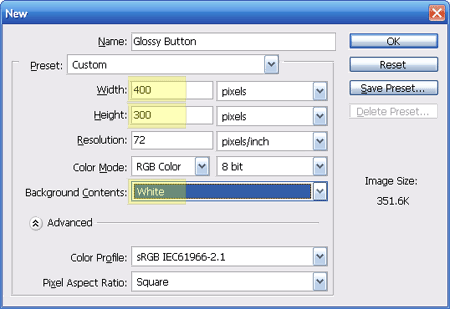
Fire up a new canvas and adjust the following settings (marked in yellow) according to the image below. The rest should come as default. You might want to double check with the defaults too.
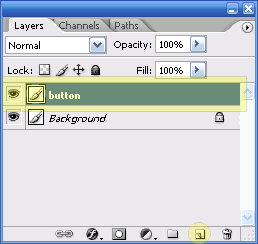
Create a new layer call ‘Button’
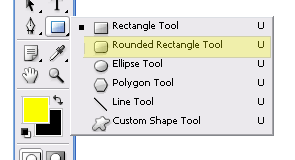
On layer ‘Button’, select the Rounded rectangle tool
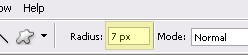
give it a radius of 7px
and draw a rectangle similar to the image below.
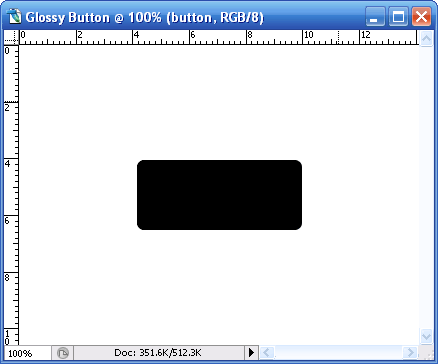
2. Red button
Right click on the Blending Options for ‘Button’ layer
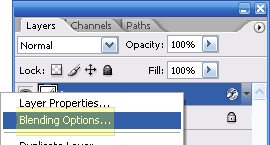
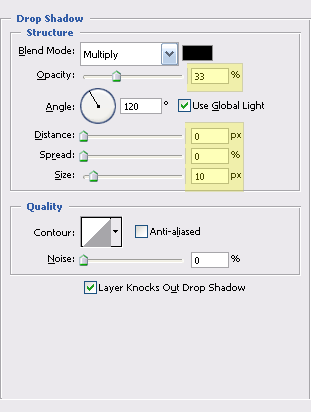
and tweak the following settings for
Drop Shadow
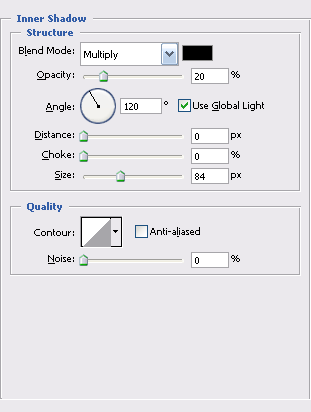
Inner Shadow
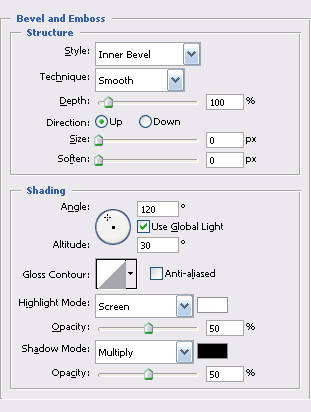
Bevel and Emboss, and
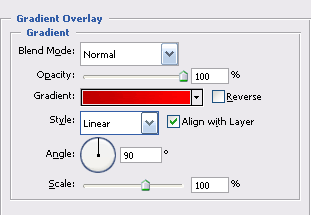
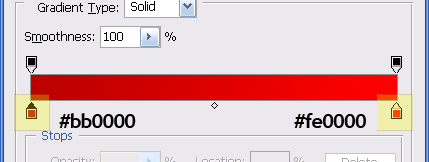
Gradiant Overlay
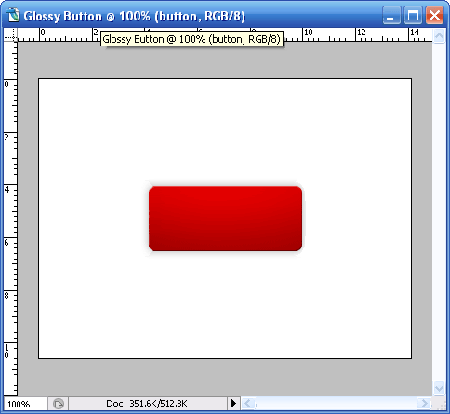
Your button should look something like this
3. Glossy and a little tweak
Create a new layer call ‘Glass’
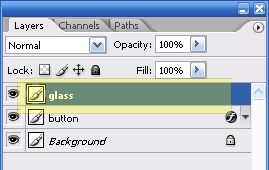
Select Retangular marquee tool, make sure you are selecting ‘Button’ layer. HOLD your key and click on layer ‘Buttons’’s layer thumbnail. Your button should now be highlighted.
Select ‘Glass’ button now, hold the key with Retangular marquee tool selected. Draw(cut) across the lower half of the button like the image below.
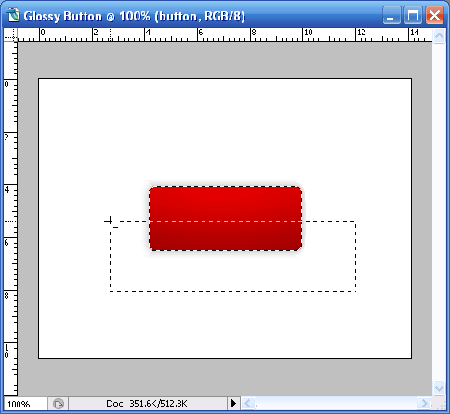
Fill the selected area with white color #ffffff using Paint Bucket Tool

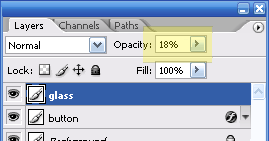
Adjust the opacity to 18%
and you should have glossy button looking like this.
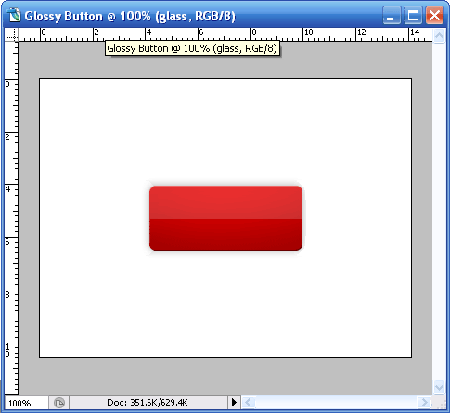
4. Pattern Overlay
Lets give the button some slight pattern overlay. I’ll be using the custom stripe5px created earlier. Click here to read “How to create custom pattern”
Create a new layer call ‘Pattern’ in between ‘Button’ and ‘Glass’ and proceed with Blending Options.
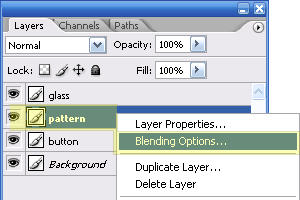
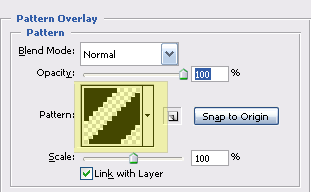
Select Pattern Overlay, choose Stripe5px (or any pattern you’ve created) and click OK then close the dialogue.
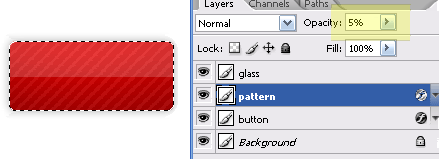
Make sure you are still on Rectangular Marquee tool, hold and click on Button’s layer thumbnail to get the buttons shape. Fill up the selected area in ‘Pattern’ layer with Paint Bucket tool and adjust the layer opacity to 5%.
5. Inserting Text
I’ll throw in some random text in white #ffffff color with the following settings

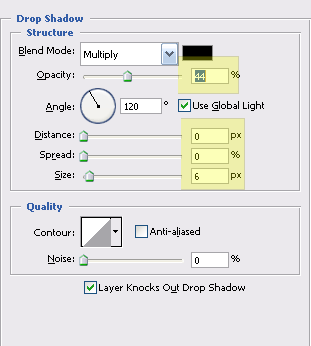
and the following blending effects on my text’s layer.
Drop Shadow
Output
You should get an image like this.


